> ## Documentation Index
> Fetch the complete documentation index at: https://docs.blockworksresearch.com/llms.txt
> Use this file to discover all available pages before exploring further.
# Getting Started
> Get up and running with the Blockworks API
## 1. Obtain an API Key
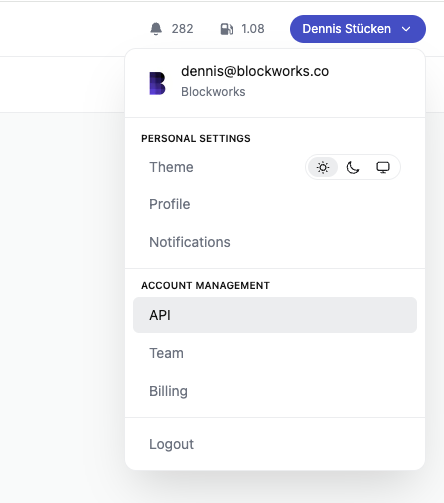
Choose your plan and log in to your account
Profile > Account Management > API
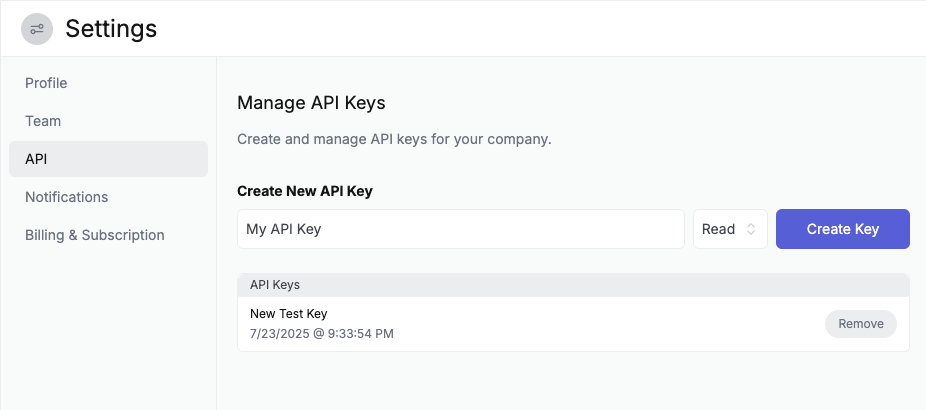
 Enter a new name for your API key and click "Create Key".
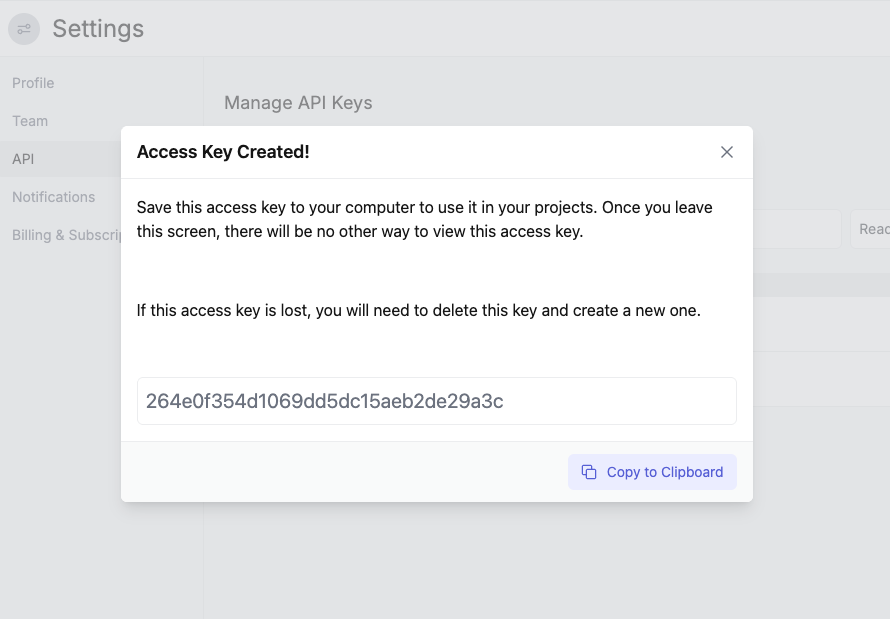
 Once generated, you won't be able to access it again. Copy the key to your clipboard and store it securely.
 ## 2. Use Your API Key to Make a Request
Once we have our API key, we can make requests to the API. Here's a simple example of how to fetch the list of available assets:
```bash cURL theme={null}
curl -H "x-api-key: YOUR_API_KEY" \
-H "Content-Type: application/json" \
https://api.blockworks.com/v1/assets
```
```typescript TypeScript theme={null}
const data = await fetch(
'https://api.blockworks.com/v1/assets',
{ headers: { 'x-api-key': 'YOUR_API_KEY' } }
)
const data = await response.json()
```
```python Python theme={null}
import requests
response = requests.get(
'https://api.blockworks.com/v1/assets',
headers = { 'x-api-key': 'YOUR_API_KEY' }
)
data = response.json()
```
### Example Response
Most API responses follow a consistent structure, with the `data` property containing an array of items,
a `total` property indicating the total number of items,
and a `page` property indicating the current page.
```json theme={null}
{
"data": [
{
"category": "Infrastructure",
"code": "ETH",
"description": "Ethereum is a distributed blockchain computing platform for smart...",
"id": 2,
"image_url": "https://coin-images.coingecko.com/coins/images/279/large/ethereum.png?1696501628",
"is_supported": true,
"is_supported": true,
"legacy_sector": "Smart Contract Platforms",
"sector_id": 40,
"slug": "ethereum",
"tag_line": "A decentralized computing platform",
"title": "Ethereum",
"type": "Infrastructure",
"updated_at": 1747346559
},
... // more assets
],
"total": 12,
"page": 1
}
```
That's it!
## 2. Use Your API Key to Make a Request
Once we have our API key, we can make requests to the API. Here's a simple example of how to fetch the list of available assets:
```bash cURL theme={null}
curl -H "x-api-key: YOUR_API_KEY" \
-H "Content-Type: application/json" \
https://api.blockworks.com/v1/assets
```
```typescript TypeScript theme={null}
const data = await fetch(
'https://api.blockworks.com/v1/assets',
{ headers: { 'x-api-key': 'YOUR_API_KEY' } }
)
const data = await response.json()
```
```python Python theme={null}
import requests
response = requests.get(
'https://api.blockworks.com/v1/assets',
headers = { 'x-api-key': 'YOUR_API_KEY' }
)
data = response.json()
```
### Example Response
Most API responses follow a consistent structure, with the `data` property containing an array of items,
a `total` property indicating the total number of items,
and a `page` property indicating the current page.
```json theme={null}
{
"data": [
{
"category": "Infrastructure",
"code": "ETH",
"description": "Ethereum is a distributed blockchain computing platform for smart...",
"id": 2,
"image_url": "https://coin-images.coingecko.com/coins/images/279/large/ethereum.png?1696501628",
"is_supported": true,
"is_supported": true,
"legacy_sector": "Smart Contract Platforms",
"sector_id": 40,
"slug": "ethereum",
"tag_line": "A decentralized computing platform",
"title": "Ethereum",
"type": "Infrastructure",
"updated_at": 1747346559
},
... // more assets
],
"total": 12,
"page": 1
}
```
That's it!